In this post, we are going to talk about what is macchanger and why we need to change our machine mac address, and how to install macchanger in other Linux operating systems.
- Kali Linux Installation on Cloud
- System Hacking Kali Linux
- MacChanger in Kali Linux
- Scanning Network Advanced IP Scanner
- MAC spoofing attack Kali Linux
Install macchanger in Linux Distros
If you want to install macchnager in another Linux distros you can use these commands for installing macchnager on different Linux distributions.
Install MacChanger in Kali Linux
In most Cases macchanger is already installed on Kali Linux, if you’re using Kali Linux net-installer ISO there is no pre-installed package, in this case, you need to install macchanger on your Kali Linux you can use this command for installing Macchnager on Kali Linux.
sudo apt install maccchanger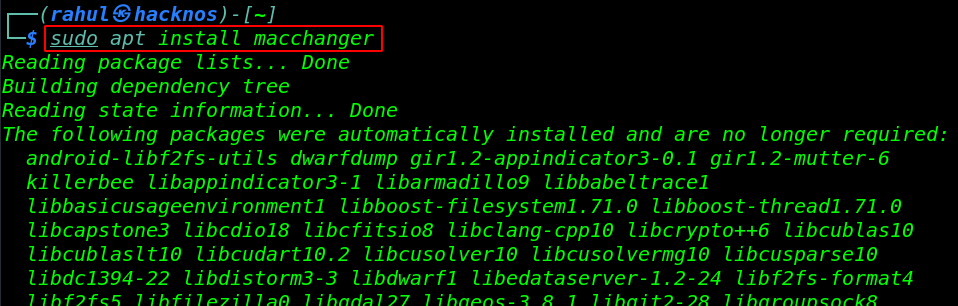
Install MacChanger in Ubuntu
sudo apt update -y && sudo apt upgrade -y
sudo apt install macchanger
Install MacChanger in Arch Linux
you can use the same command to install macchanger on other Arch Linux-based distros like Manjaro Linux, EndeavourOS, ArcoLinux, BlackArch Linux.
sudo pacman -Syyu
sudo pacman -S macchanger
What is MacChanger
Macchanger is a Linux utility for viewing machine mac addresses and changing the MAC ad‐
dress for network interfaces. using this utility you can’t change your mac address permanently, After reboot your machine you need to change again your mac address.
Why we Need MacChanger
If you make your system anonymous with login testing there are a few steps you can follow. Sometimes, you also change or manipulate your mac address so that your device’s network card hardware address is hidden. To do so you can use the tool macchanger that already exists in Kali Linux.
Change random mac address
Before change our mac address first we need our network interface name, we use the ifconfig command for listing all network interfaces.
ifconfig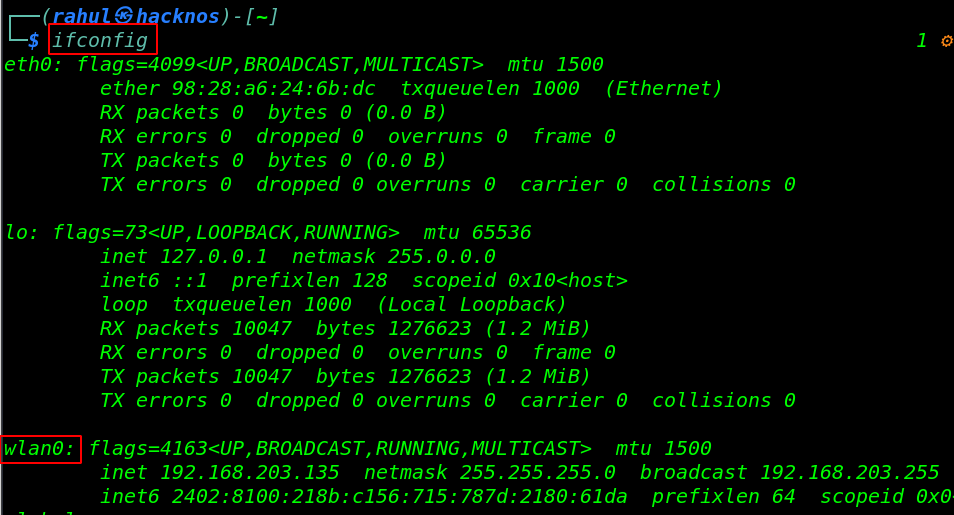
Now in my case, my network interface name is wlan0 because I’m using my WIFI connection, If you use a different Linux Distro and different network connections like Ethernet, USB connection in this case your network interface name is different.
Command MacChanger In Kali Linux
First, we check our current mac address using the command.
-s => Show MAC Address
wlan0 => Network Interface Name
macchanger -s wlan0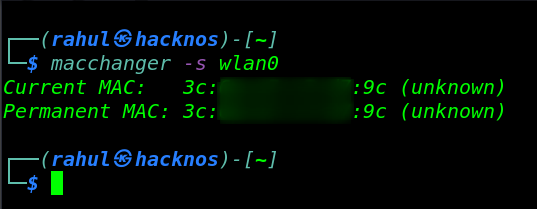
Before changing our mac-address, we need to down our network let’s run this command for the network connection to turn off.
sudo ifconfig wlan0 downNow We are ready to change the MAC address of the network interface by using this command
-r => random mac-address
wlan0 => network interface name
macchanger -r wlan0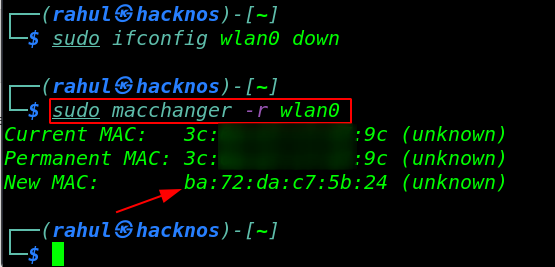
Once you have done these commands you can finally open your network interface and again check the mac address using these commands.
sudo ifconfig wlan0 up
macchanger -s wlano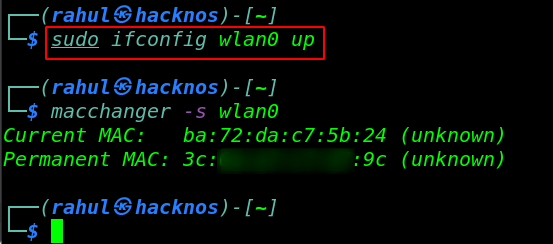
Change the specific MAC address
You can use the network interface MAC address MAC of your specific choice uses these commands for changing specific choice mac-address.
Bypass WIFI MAC-Address Filtering
Why do we need specific mac-address
We need many cases specific mac-address like if you wanna connect to some WIFI address, and there is enable mac filtering for specif mac-address use can use the owner device mac-address for bypassing WIFI mac filtering.
ifconfig wlan0 down
macchanger -m 00: d0: 70: 00: 20: 69 wlan0
ifconfig wlan0 up
macchanger -s wlan0