How to setup Joomla Apache webserver for CTF lab
Joomla is an open-source platform on which Web sites and applications can be created. It is a content management system (CMS) which connects your site to a MySQLi, MySQL, or PostgreSQL database in order to make content management and delivery easier on both the site manager and visitor Joomla setup apache
The First Step is to Download Joomla latest version from Joomla.org official link here
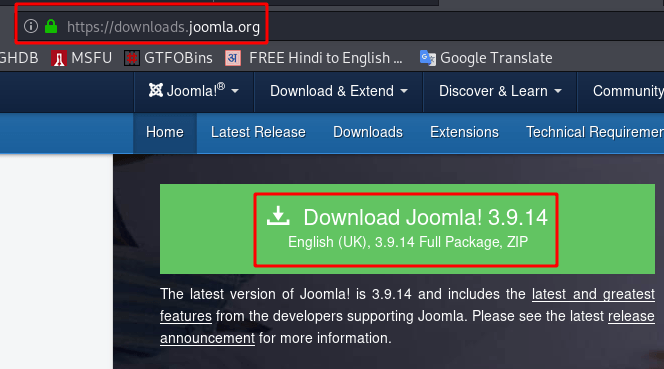
2. Download Joomla our Linux server with wget command
sudo wget https://downloads.joomla.org/cms/joomla3/3-9-14/Joomla_3-9-14-Stable-Full_Package.zip

3. installing apache webserver and maria database server and PHP
sudo apt install unzip apache2 mariadb-server php
4. Extract Joomla zip file with unzip and (-d destination our apache web directory)
sudo unzip Joomla_3-9-14-Stable-Full_Package.zip -d /var/www/html/
5. Changing permission and ownership ship the directory recursively means our Joomla directory inside all file
sudo chmod -R 755 /var/www/html/sudo chown -R www-data:www-data /var/www/html/
6. Creating a new database for Joomla
sudo mysql -u root -p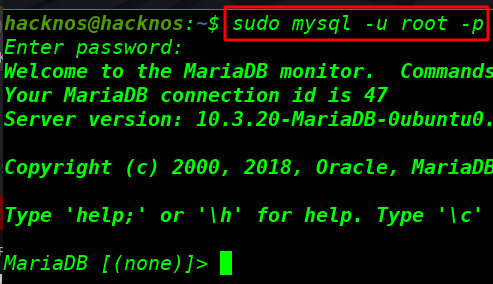
database name here
create database joomla;database username and password
create user 'joom'@'localhost' identified by 'password';granting permission user
grant all on joomla.* to 'joom'@'localhost' identified by 'password' with grant option;Flush all privileges
flush privileges;exit;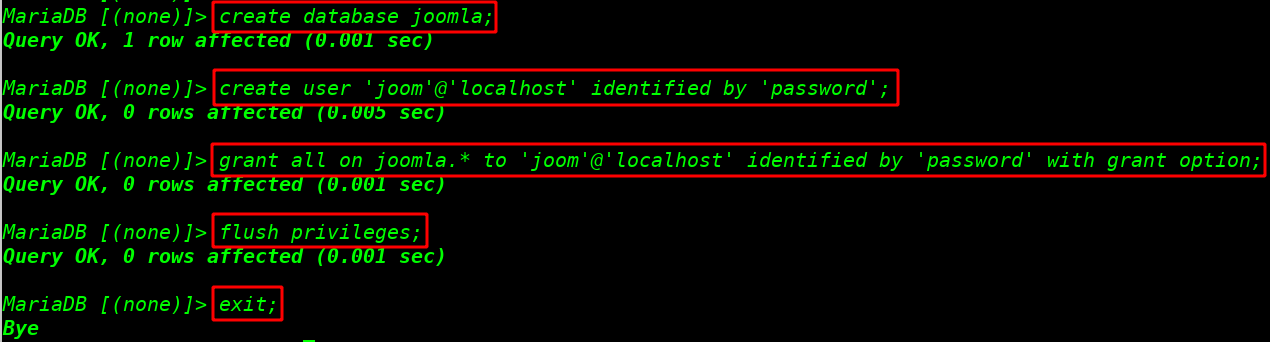
7. Install PHP important modules Joomla requirement
sudo apt-get install php-cli php-common php-mbstring php-gd php-intl php-xml php-mysql php-zip php-curl php-xmlrpc libapache2-mod-php
7. remove default apache web server file
sudo rm /var/www/html/index.html
8. And finally, restart our apache2 webserver
sudo service apache2 restart
Setup Joomla Website
9. Open you’re any web browser and type your IP address in the URL bar and fil our site name and Description email, username, password and click Next button
http://192.168.1.3
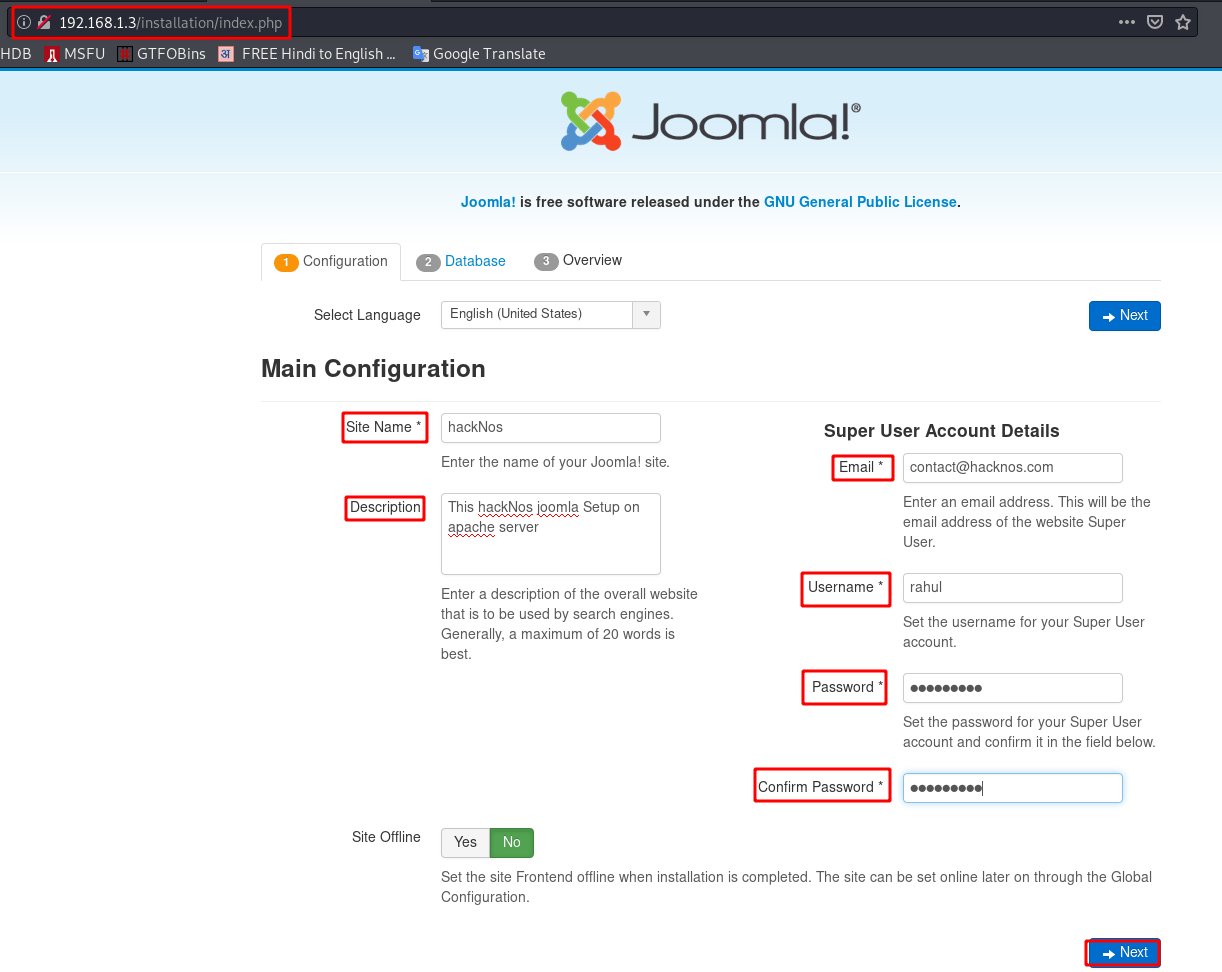
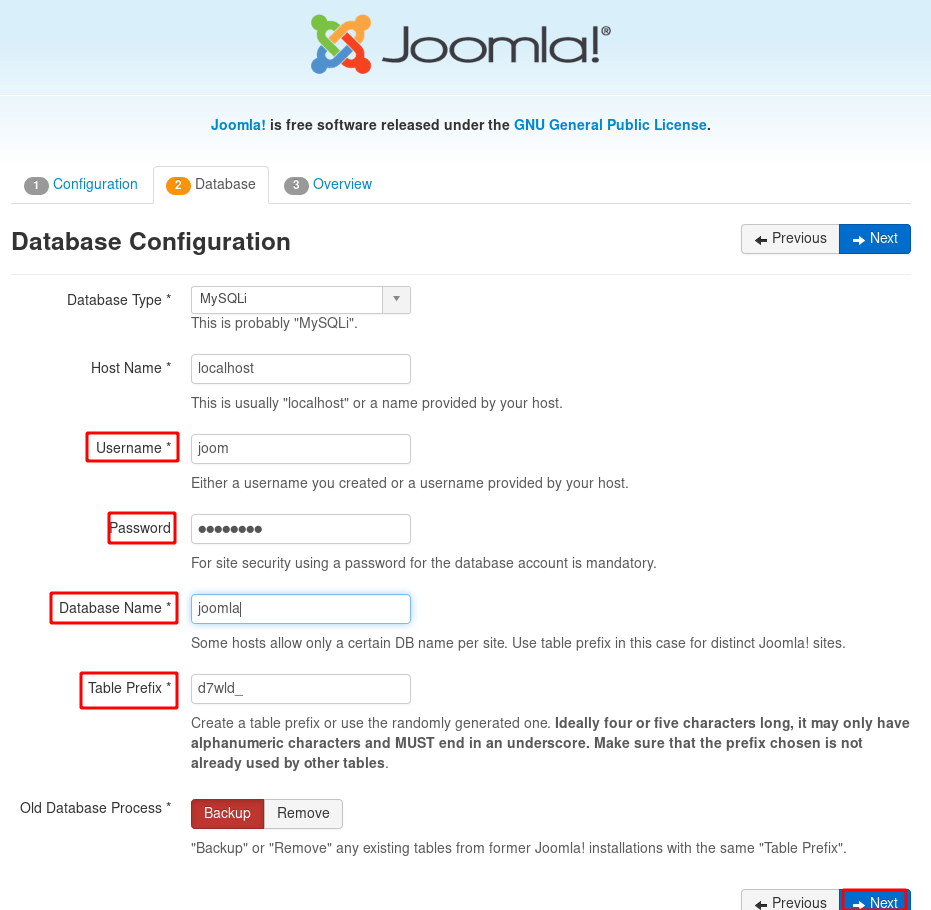
10. Configure our database server database username, and password and database name and click next button
11. This is the last step check your all configuration and click Install button
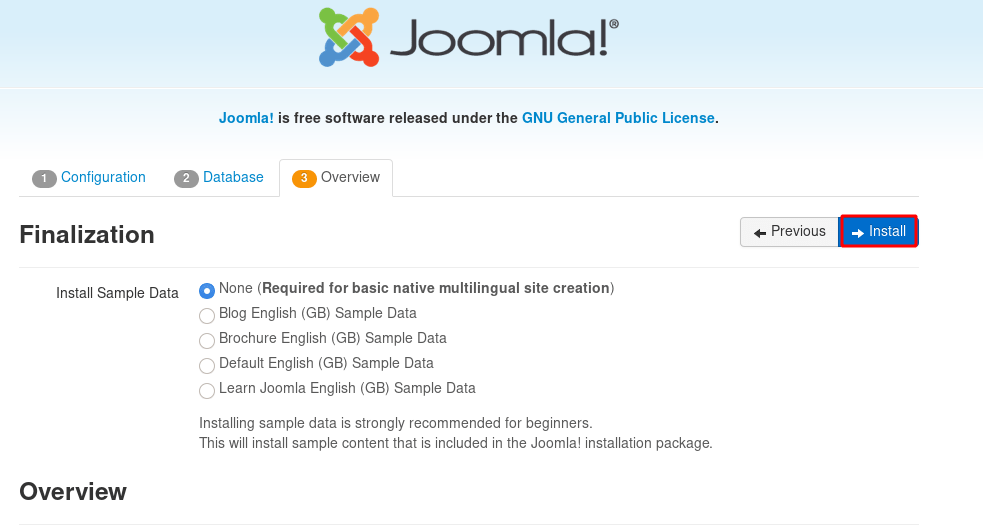
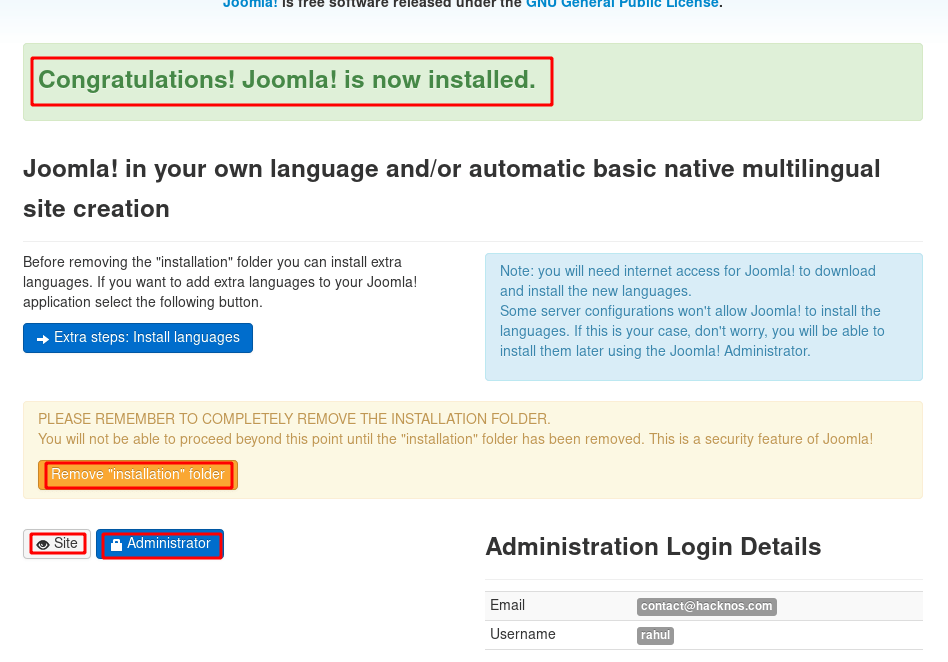
Finally, you see Joomla setup is complete install
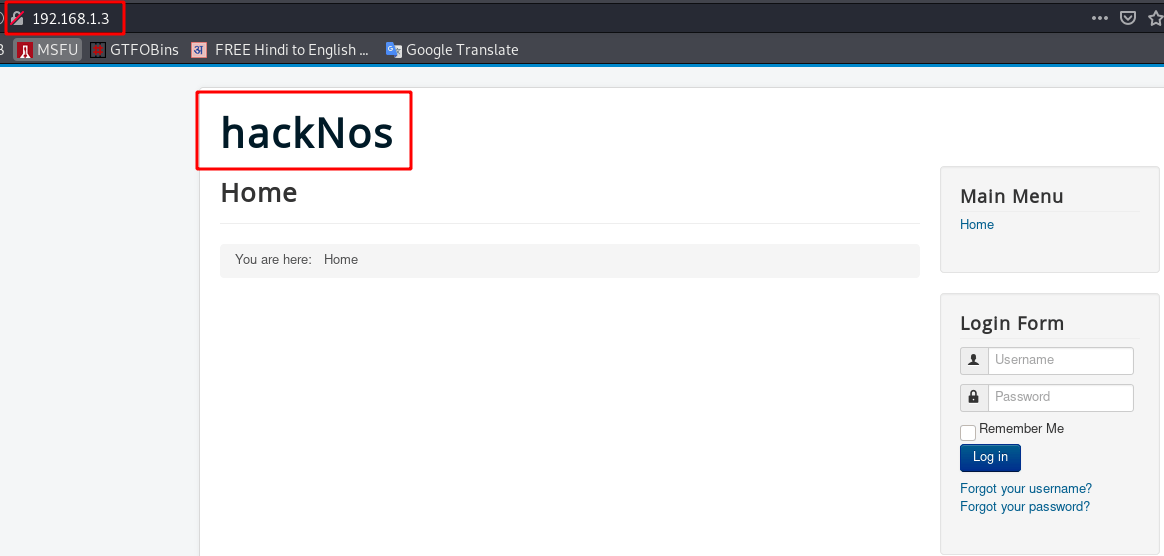
checking our website is run properly our server this URL Http://<our IP address>
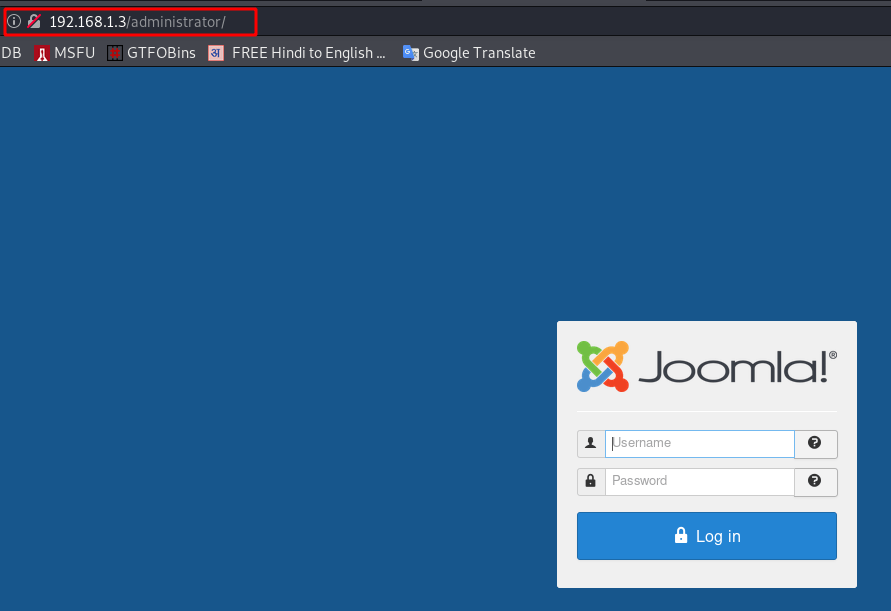
login with our Joomla administrator account this URL Http://<our IP address>administrator
how to setup drupal see here